and I launch it . I want to be able to click on a business file hyper link and have it open but it says no programme registered to open this file. Are we able to download the the .exc version? not the sandbox version
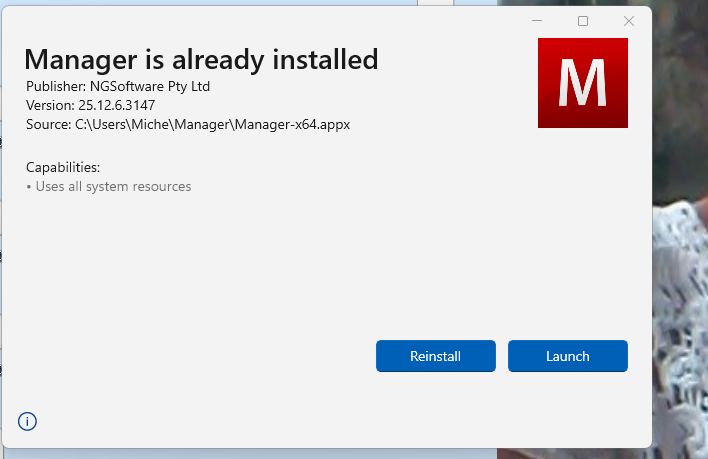
Typically you wouldn’t be clicking on installation file to launch the program. Once the program is installed, you should see shortcut in Windows which would directly take you to the program without this intermediate dialog window.
Thanks again @lubos for answering I know you must be extremely busy , I do normally but what we were trying to do was each person has their manager file in their own client folder, and in access we had a file path we were hoping to follow that file path and open the manager file to work on. But it can not follow the file path because it does not know what programme to open it with.
I don’t know how to make Windows recognize the .manager extension files so that the Manager WindowsApp opens them directly.
As a workaround it’s possible to extract the Manager-x64.appx file into a folder and run it from there, because it’s just a renamed zip file. Either rename the .appx extension to .zip, or if you have 7-zip installed you can extract directly. The “app” folder inside this new extracted Manager folder contains Manager.exe. Then when you click on a .manager business file you can browse to this Manager.exe file and open the business.
This will make updating Manager a bit more tricky as you’ll have to extract the new versions each time and tidy up the extracted folders. If you keep the folder name the same at every update it should work.
before it was something different and it still does not open the actual business . Now I have to open the business as well it just points me to the business screen. and I can not import and old business any more .
That is unexpected! Manager isn’t opening the file at all, it just loads with the the saved data/business folder. I think @lubos needs to advise. I can also only open backups by changing the default data folder
I have backups in their own folder so one changes the default to that folder. But it’s messy because then you have to change it back to your normal work folder. It didn’t used to work like that.
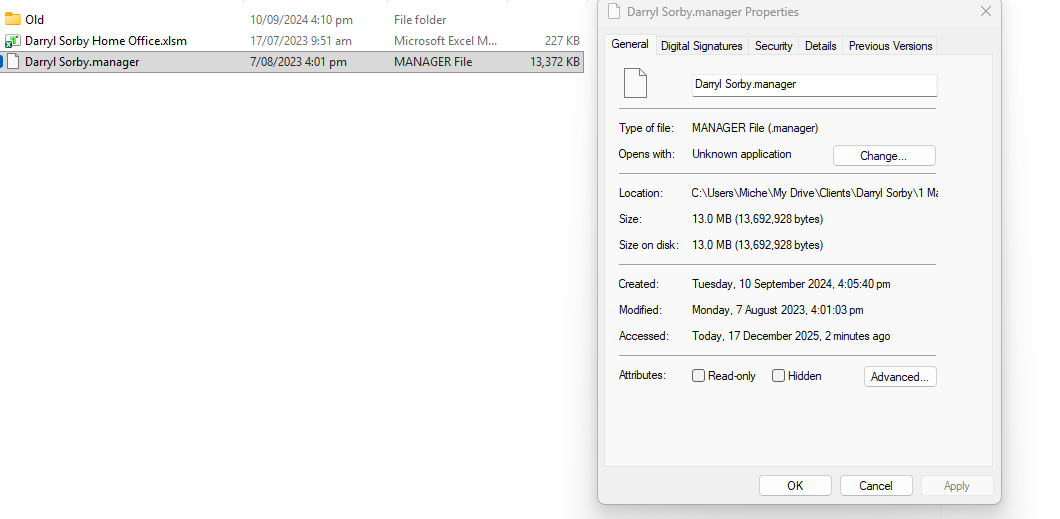
I am still struggling with this so this is what my manager back up files look like. When I go into properties and look open with it says unkown and I can not seem to change it .
when I try and go open with it brings up a list manger, manager.exc, managerserver which I dont even have. I have deleted all manager programs off my pc and started again. but still no luck . I want to be able to open a client file directly I dont want to have to click on launch all the time. Can someone give me some answers please. I keep asking and nobody seems to know . What do other people do ? do you go through the same thing ? @lubos can you help me please


 You now have a Manager icon on your desktop
 Ignore
  Always open Manager from the icon