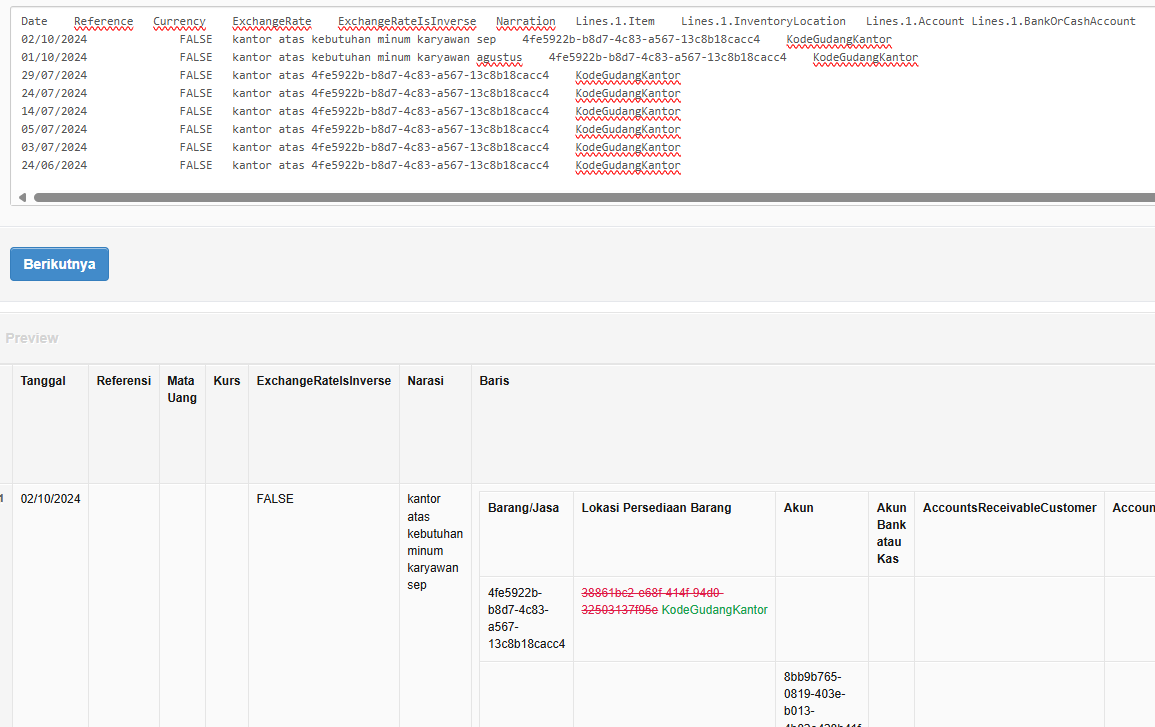
I want to edit batch for inventory location.
The issue is after I click next, it showed the preview and the preview is not correct:

I tested it several times.
I also change the browser to incognito mode, but it still the same.
Please advise.
Hi @Kausa_Lestari,
First we need to know more information like:
Also, the UUIDs in the text area are not the same as those in the Preview panel.
This is strange, are you sure you haven’t pasted another text after clicking Next by mistake? Please confirm this
i use cloud version and Journal Menu.
I also have the same result in Purchase Invoice menu while batch update for inventory location.
I am sure. I tried it again this morning, and the result is still the same.
thank you for your time to test.
Does anybody has test cloud version?
Cloud version is the same and is up to date. @Mabaega just confirmed it is not a bug but user-error. Is this the first time you use Batch-Update to try to change location? If so then follow @Ealfardan’s advise and try to figure out how you altered the data, i.e. what UUID you used for Location.
I frequently use it.
After I change manually for one journal, let’s say Ref 002, then I batch update and see the inventory location “code” in ref 002 field. Then I used that code to replace another records in excel.
But as you see in the image above, it wouldn’t change. And of course the batch didn’t change anything.
what is UUID?
That is where your issue is. The easiest way to find the UUID(s) of the Inventory location(s) is to go to Settings → Inventory Locations and select Batch Update. For the example I just pasted it straight back in the box below but better is to save it in a spreadsheet for future reference. You should use these UUIDs (e.g. Location 1 UUID in below example is: c1b2a84d-d03a-482e-9958-cf36192c2eaf) for location when doing an Inventory batch update.
@Kausa_Lestari, since you mentioned you’re trying to Update Journal Entries, it make a bit more sense why this is happening.
Obviously from the missing blue highlight in your text, you were trying to update a Journal Entry that already has (2) lines with a new entry that only has (1) lines, this will not work.
The reasons are:
Also, picking up @eko’s lead, apparently the UUIDs you are providing are incorrect.
Instead of throwing a verbose error, Manager will simply ignore incorrect information and this already shows in your screenshot since all the values are in Black. If the update have been successful then the old values would be in Red and new values in Green.
The good news @Kausa_Lestari is that you don’t have to search for UUIDs anymore, if you can uniquely code your Chart of Accounts and your Inventory Locations, then you can use your own codes instead of UUIDs.
I search the UUID based on what your suggestion and the UUID is exactly the same as the code I paste with my previous way which is did not work.